
Adding New Feature Groups for a cPanel Theme
- Written by Vanessa Vasile
- Published in Howto
- 2 Comments
- Permalink
You’ll probably often see hosts that have a ton of extra icons in their cPanel for various items. When you’re customizing cPanel, it’s useful to be able to be able to add icon groups for features that either need to be grouped together, or that don’t fit into other categories. cPanel 11 makes it very easy to customize how icons are presented.
Create the Group
First, you’ll want to create your icon group. The group will contain features/plugins that you create and assign to the group. Here’s a very basic example of a Twitter plugin that was created as part of a separate group called “Extras”:
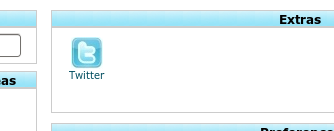
First, we’re going to create the “Extras” group:
If you’re using the x3 theme, go into /usr/local/cpanel/base/frontend/x3/dynamicui . Create a file based on your new menu, prefaced with dynamicui, and ending in .conf. For example, I’m creating a group of icons that I want to be under a group called “extras”, so the file I create will be called dynamicui_extras.conf .
In the dynamicui_extras.conf file, all on one line, I’ll add the properties for my group, making sure everything is on one line:
groupdesc=>Extras,description=>extra icons,grouporder=>-100,group=>extras_menu,

imgtype=>icon,subtype=>img,type=>image,file=>extras,height=>32,width=>32
*Above info may be wrapped for display purposes, but in the file it should all be on one line
The settings here should be fairly self-explanatory, but here are the main elements:
- groupdesc: The label that will show up in cPanel for the group heading
- description: Describes the group (not shown in cPanel)
- grouporder: Where the group will show up in the cPanel interface (accepts negative values, lowest number is highest up)
- group: The name of the group, used when generating cPanel plugins
The rest of the values should be inputted as above, and just put the file value as the name of the group. Now, save the file and reload cPanel. If you have active feature in this group, you should see the group and its icons appear when loading cPanel. If you don't see it, it means that either you don't have any features as part of the group, or your features are not configured correctly. So let's do that now!
Create Plugins (Features)
Cpanel plugins are basically items in cPanel that add functionality, and are enabled/disabled in WHM's Feature Manager. To create a plugin, simply use the cPanel Plugin Generator. Notice that in the form, there's an option for Display Group - you can choose any of those for now, since you're just going to change it later.
Once you've generated and downloaded the plugin, open the plugin file and edit the group line. This should reflect the value you put as group for the group you created earlier, so in my example, the line should read:
group:extras_menu
To install the plugin, copy the file to /usr/local/cpanel/bin and run:
/usr/local/cpanel/bin/register_cpanelplugin /usr/local/cpanel/bin/<pluginfilename>
You should now see the icon and group in cPanel. If you don't, you can try rebuilding the sprites:
/usr/local/cpanel/bin/rebuild_sprites
Resources:
cPanel Documentation: Installing Plugins
cPanel Documentation: Adding Icons and Groups
2 Comments
how to un install it ?
The name of the group does not apper even after following your instructions . Plugin was installed successfully . But what about the name . I you can really help , please contact